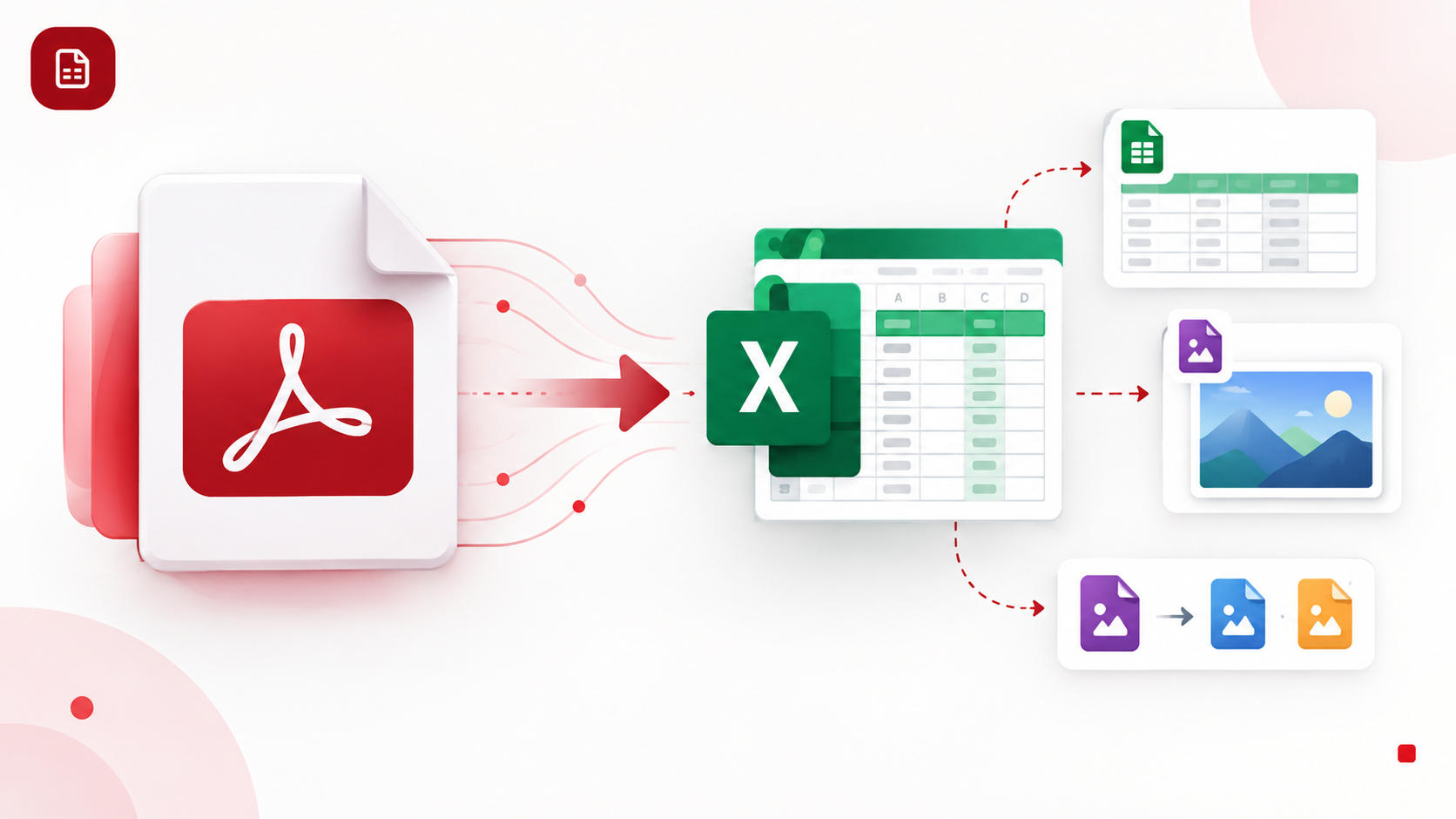
Why Does My File Conversion Look Wrong? Common Problems With PDF to Excel, Excel to CSV, Excel to Image, and WebP to JPG/PNG
Converting a file from one format to another sounds simple: upload the original file, select an output format, and download the result. But the converted file does not always look or behave like the original.
A PDF may turn into an Excel spreadsheet with misplaced columns. An Excel workbook saved as CSV may lose colors, formulas, or multiple worksheets. An Excel sheet converted into an image may appear cropped or difficult to read. A WebP image converted to JPG or PNG may have different quality, colors, file size, or transparency.
These results are not necessarily signs that the conversion has failed. Different file formats are designed to store different types of information. When a converter changes the structure of a file, some information may need to be interpreted, discarded, or represented differently.
Understanding what each format can preserve makes it much easier to identify and fix conversion problems.
Why Does a Converted File Look Different?
The main reason is that file formats do not store information in the same way.
For example, an Excel workbook can contain formulas, cell formatting, charts, multiple worksheets, objects, and other spreadsheet features. CSV is fundamentally a text-based, delimited format. Microsoft specifically notes that when an Excel workbook is saved as CSV, formatting, graphics, and other worksheet features are not preserved, and only the active worksheet is saved.
PDF files create a different challenge. A PDF can contain text, positioned elements, tables, images, scanned pages, and other layout information. Converting that visual layout into structured spreadsheet rows and columns requires the conversion software to interpret the document.
Image formats have another type of limitation. JPEG, PNG, and WebP use different compression and feature sets. WebP can support both lossy and lossless compression as well as transparency, while JPEG and PNG have different capabilities and typical use cases.
So the first question should not simply be, Why did the converter fail? It should be, "What information is the destination format capable of preserving?"
Common PDF to Excel Conversion Problems
PDF to Excel conversion is particularly sensitive to the structure of the original PDF.
1. Columns and rows are in the wrong places
A table may look perfectly organized to a person reading the PDF, but the PDF does not necessarily store that table as a conventional spreadsheet grid.
During conversion, software has to determine which pieces of text belong to the same row or column. If the original document has unusual spacing, merged cells, multiple columns, or complicated table layouts, the resulting spreadsheet may require manual adjustment.
For example, a financial report may contain a description column, several numerical columns, and subtotals. If the PDF uses positioning rather than an underlying spreadsheet structure, a converter may interpret some values differently from the way a human sees them.
2. Scanned PDFs produce poor spreadsheet results
A scanned PDF is often essentially a collection of page images rather than directly selectable text. In that situation, the converter may need optical character recognition, or OCR, to identify the words and numbers.
Adobe's documentation explains that Acrobat automatically applies OCR when working with scanned documents, turning recognized content into editable text.
OCR can be useful, but it should not be treated as identical to having the original digital spreadsheet. Tables, unusual fonts, low-resolution scans, rotated pages, or unclear characters can make recognition more difficult.
If the output contains incorrect characters or misplaced numbers, check the original PDF first. Zoom in and determine whether the source contains selectable text or is primarily scanned imagery.
3. Formatting does not match the PDF
A PDF is designed to preserve a page's appearance, while Excel is designed around cells and structured data.
As a result, elements such as page headers, footers, text boxes, merged areas, line spacing, and decorative formatting may not translate into a spreadsheet exactly as they appear on the page.
If your objective is editable data rather than identical visual appearance, some formatting differences may be expected.
For users who need to extract tables or structured information, a PDF to Excel tool can be useful when the goal is to move PDF data into an editable spreadsheet.
Why Excel to CSV Loses Formatting
One of the most common file conversion problems happens when an Excel workbook is saved as CSV.
CSV stands for comma-separated values. It is intended to represent tabular data using delimiters rather than Excel's full workbook structure.
Microsoft states that saving a workbook as CSV removes formatting. It also saves only the active worksheet.
That means the following can disappear or change:
Cell colors and borders
Font formatting
Charts and graphics
Multiple worksheets
Workbook-specific features
Some formula behavior
Other Excel-specific formatting and objects
The actual values can still be useful, but the CSV should not be treated as a visual copy of the original workbook.
CSV columns are shifted or data appears in the wrong fields
A Excel to CSV uses a delimiter to separate fields. Although commas are common, other separators may be used depending on the application and regional settings.
Microsoft notes that the separator character can affect how CSV data is imported and exported.
This is particularly important when a cell itself contains commas. CSV uses quotation marks to distinguish commas that belong inside a field from commas separating fields.
If a CSV opens with everything in one column, or values appear under the wrong headings, check the delimiter and import settings rather than assuming the source data is corrupted.
Dates, numbers, and leading zeros can change
CSV stores values as text separated by delimiters. When another application opens the file, it may interpret certain values as dates or numbers.
Microsoft specifically documents scenarios where importing CSV data requires attention to date formats and numbers with leading zeros.
For example, an identifier such as 00125 may need to remain text. If the receiving application interprets it as a number, the leading zeros can disappear.
For data exchange, always inspect important columns after conversion rather than assuming that the displayed values were interpreted exactly as intended.
Why an Excel to Image Conversion Looks Blurry or Cropped
Converting an Excel worksheet to an image changes editable spreadsheet content into a static visual representation.
Microsoft provides a "Copy as Picture" function for cells, charts, and objects and recommends using the picture option for better picture quality.
Several problems can occur during Excel-to-image conversion.
The image is blurry
A spreadsheet containing small text can become difficult to read if the output is rendered at a low resolution or resized afterward.
To improve readability, avoid repeatedly resizing the resulting image. If possible, generate the image at an appropriate resolution for its intended use.
Part of the worksheet is missing
A worksheet can be much larger than the area you intended to share. If the converter captures a large range, the resulting image may become extremely wide or tall.
Before converting, identify the exact cells or table that need to appear in the image. Removing unnecessary rows and columns can make the final image much easier to read.
Charts and cells look different
Excel contains many objects and formatting features. A static image cannot preserve spreadsheet behavior such as formulas, filtering, or editing. It preserves the visual result instead.
Therefore, an Excel-to-image conversion is most useful when the goal is to share, display, publish, or embed spreadsheet content rather than continue editing it.
Why WebP to JPG or PNG Conversion Changes Image Quality
WebP supports both lossy and lossless compression and can also store transparency. Google explains that WebP's lossy mode uses compression that can reduce file size while potentially changing image information, whereas lossless WebP can reconstruct the stored pixel values exactly.
This distinction matters when converting WebP to JPG or PNG.
WebP to JPG may reduce quality
JPEG is commonly associated with lossy compression. If the WebP source is already compressed and you convert it to another lossy format, additional visual differences may appear.
Fine details, text inside images, sharp edges, or subtle gradients can become more noticeable after conversion, particularly when the output is saved at a lower quality setting.
WebP to PNG can produce a larger file
PNG is commonly used when preserving sharp graphics or transparency is important. Converting an image to PNG does not automatically mean the output will be smaller.
Google's WebP documentation notes that WebP can provide smaller files than comparable PNG or JPEG images at similar visual quality in the situations measured by Google's documentation.
Therefore, a WebP-to-PNG conversion that produces a larger file is not necessarily an error. The destination format may simply represent the image differently.
Transparency may behave differently
WebP supports transparency, including in both lossless and lossy modes.
If a transparent WebP is converted to a format or workflow that does not preserve transparency, transparent areas may appear with a background instead.
When transparency matters, verify the output format and the converter's transparency settings before converting.
A WebP to JPG/PNG Converter can be useful when the goal is to create a JPG or PNG version for software, websites, or other workflows that require those formats.
How to Troubleshoot a File Conversion
When a converted file looks wrong, use this process before converting it repeatedly.
Step 1: Check the original file
Open the original and determine whether the problem already exists there. A low-resolution scan, damaged spreadsheet, unusual table structure, or heavily compressed image can affect the result.
Step 2: Identify what changed
Look specifically for missing data, incorrect text, changed formatting, shifted columns, image quality loss, transparency changes, or missing worksheets.
Step 3: Check the destination format
Ask whether the destination format supports the feature you are trying to preserve.
For example, CSV is not intended to preserve Excel's visual formatting, while an image is not intended to preserve spreadsheet formulas or editability.
Step 4: Use the appropriate conversion settings
For PDF files, OCR may be important when the source is scanned. For CSV files, check delimiters and data interpretation. For images, check quality, dimensions, transparency, and compression settings.
Step 5: Verify important data manually
For financial records, invoices, identifiers, dates, or other important information, compare the converted file with the original. A conversion can look visually acceptable while still containing a small data error.
Conclusion
Most file conversion problems happen because the source and destination formats represent information differently. PDF to Excel conversion has to interpret document structure and sometimes OCR scanned pages. Excel to CSV removes spreadsheet formatting and preserves data in a text-based structure. Excel to Image creates a static visual representation, while WebP to JPG or PNG can change compression, quality, file size, or transparency.
The best way to avoid unexpected results is to choose the output format according to what you actually need to preserve. If you need editable spreadsheet data, use a spreadsheet-compatible format. If you need plain tabular data for another application, CSV may be appropriate. If you need a visual snapshot, an image format makes sense. And when converting images, consider whether quality, transparency, or file size is the priority.
Most importantly, always check the converted output against the original when the file contains information that must remain accurate.